Quick start
This page takes you from installation to a first dynamic construction. Eidograph's central idea is simple: every canvas action becomes Eidolang text, so a figure can be saved precisely, reproduced, and edited by an agent.
Install and launch
Open the official Eidograph download page, continue to the app store for your device, and install Eidograph. On first launch, the app creates an untitled project with one example 2D figure.
TIP
The app is in early development. If a later test build cannot load a previous local workspace, it returns to the default workspace. Save anything you need to keep as an .eido file.
Meet the workspace
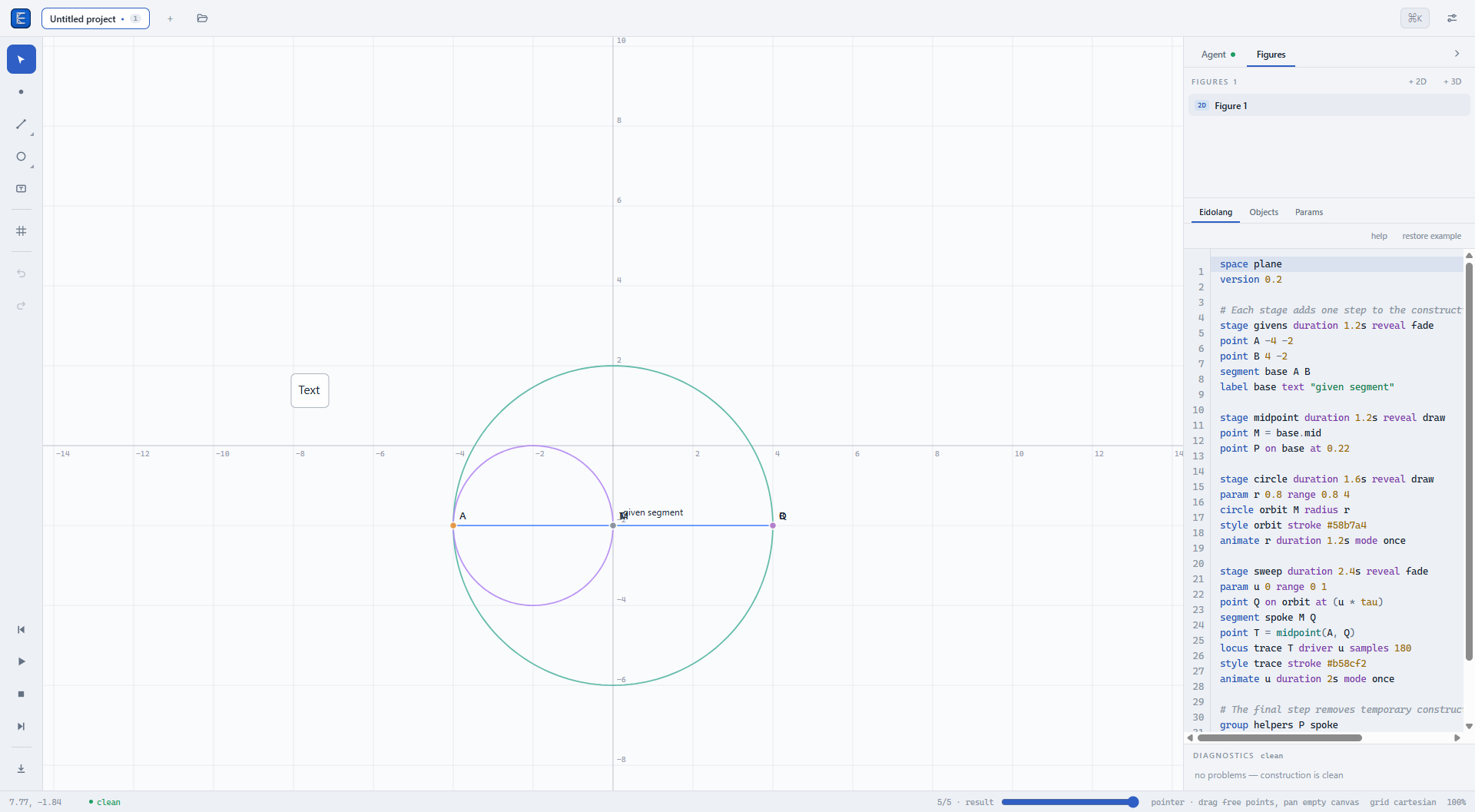
- Tabs across the top are projects; one
.eidofile represents one project. - The left rail selects and constructs points, segments, circles, and other objects, and contains undo, redo, and export.
- The center canvas supports zooming, panning, and direct dragging.
- The upper-right panel manages figures in the project. A figure is fixed as 2D or 3D when created.
- The lower-right panel switches among Eidolang, Objects, and Params, with diagnostics below.
Make a first construction
- Select the Point tool and click twice on the canvas to create two free points.
- Select Segment, then click those two points.
- Return to Pointer and drag either point. The segment follows immediately.
- Open the Eidolang panel. You will see a script like this:
space plane
point A -3 0
point B 3 0
segment s A B
You can paste that script directly as well. Change a coordinate and the canvas recalculates immediately. Orange points are free to drag, purple points are bound to a path, and gray points are derived and move through their inputs.
Save and reopen
Click the project tab and choose Save, or press Ctrl/⌘ K and run the save command. Eidograph writes one .eido file containing every figure in the project and its plain-text script.
- Open an
.eidofile to create a new project tab. - Drop a
.txtor.geofile to add one script to the active project. - Choose a file name and location on the first save. Later saves can overwrite that file; use Save As to choose a new location.
Continue with the core workflow for files, export, settings, and the in-app Agent.
Continue with Install Eidograph, Account and Pro, or Tablet touch.