Move Any Window to an Exact Position and Size
- Metaphor Projects
- Application
- 13 Apr, 2026
You’ve set up a perfect workflow: your code editor on the left, browser on the right, terminal at the bottom. Then you restart your machine and spend the next five minutes dragging windows back into place — close, but never quite right.
OverRec fixes this.
The Problem with Manual Window Placement
Dragging a window with your mouse is inherently imprecise. You aim for pixel 960 and land on 963. You resize until it “looks right” only to notice the gap a moment later. For casual use this is fine. For screen recording, documentation screenshots, or a repeatable workspace layout, a few pixels of drift is enough to ruin consistency.
GUI: Draw First, Snap Second
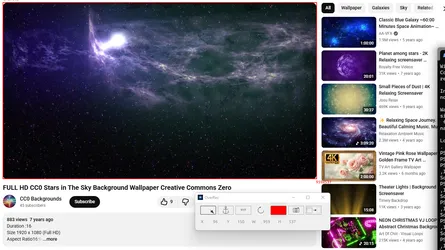
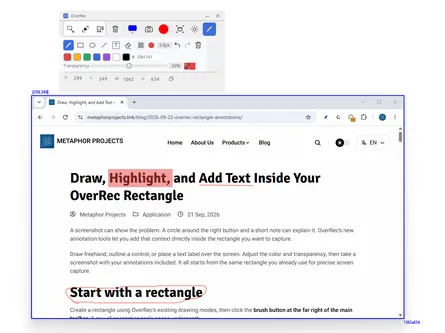
The idea is simple — draw the rectangle you want the window to occupy, then tell OverRec which window goes there.
Step 1: Draw the target rectangle
Open OverRec and draw a rectangle in the position and size you want. Use Free Drawing Mode to drag it into shape, or switch to Fixed Coordinate Mode and type the exact values:
- Position:
X, Yfrom the top-left of your screen - Size:
Width × Heightin pixels
Step 2: Click the Snap Window button
The Snap button (rightmost in the top row) opens a searchable list of all visible windows on your system.
Step 3: Search and select
Type any part of the window title to filter the list. Search works in any language — English, Chinese, Japanese, Arabic, Hindi, Bengali, and more. Click the window you want.
OverRec moves and resizes it instantly to fill your rectangle, then brings it to the front.
That’s the entire workflow. Three steps, and the window is exactly where you need it.
CLI: One Command, Repeatable Every Time
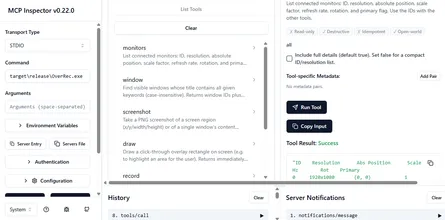
For automation, scripting, or AI-assisted layouts, every GUI action is also available from the terminal.
Find the window ID
OverRec.exe cli window chromeOutput:
WindowID        Title
------------------------------------------------------------
657846          Google Chrome
Search with multiple keywords (all must match, case-insensitive):
OverRec.exe cli window visual studio codeSnap it to position
OverRec.exe cli snap --windowid 657846 --location 0,0 --size 1280x720The window is restored if minimised, moved, resized, and brought to the front — in a single command.
Working with multiple monitors
First, list your monitors to find their positions:
OverRec.exe cli monitors --allThen use --monitor to specify coordinates relative to that monitor’s top-left:
OverRec.exe cli snap --windowid 657846 --location 0,0 --size 1920x1080 --monitor 2Tiling Windows Side by Side
Splitting two windows across your screen takes four commands:
OverRec.exe cli window chrome
OverRec.exe cli window notepad

OverRec.exe cli snap --windowid 657846 --location 0,0    --size 960x1080
OverRec.exe cli snap --windowid 329812 --location 960,0  --size 960x1080
Or as a one-liner in bash (WSL or terminal):
LEFT=$(OverRec.exe cli window chrome  | awk 'NR>2 && $1~/^[0-9]+$/ {print $1; exit}')
RIGHT=$(OverRec.exe cli window notepad | awk 'NR>2 && $1~/^[0-9]+$/ {print $1; exit}')
OverRec.exe cli snap --windowid "$LEFT"  --location 0,0   --size 960x1080
OverRec.exe cli snap --windowid "$RIGHT" --location 960,0 --size 960x1080
Use Cases
- Screen recording: lock your demo app to a known region before hitting record
- Documentation: capture consistent screenshots without manually repositioning windows between shots
- Workspace setup: restore your preferred window layout with a single script after a restart
- AI workflows: let an agent arrange windows before taking a screenshot or analysing the screen
Summary
| Method | Steps |
|---|---|
| GUI | Draw rect → Snap button → select window |
| CLI | OverRec.exe cli window <name> → OverRec.exe cli snap --windowid ID --location X,Y --size WxH |
Download OverRec from the Microsoft Store.