
OverRec
Draw an overlay rectangle of any size over any window, resize apps to exact dimensions, capture precise screenshots, overlay measurement grids, and record any region to GIF or MP4 — with full CLI and MCP support for automation and AI agents.

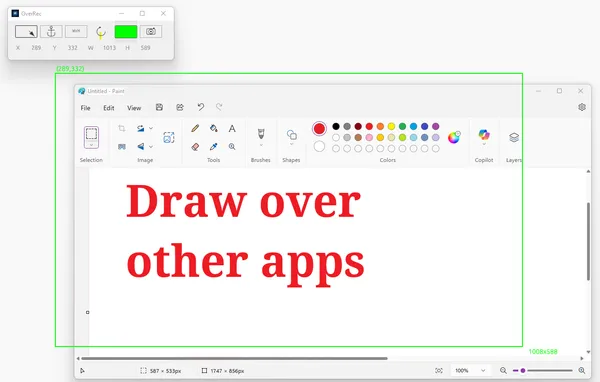
Draw Over Any App
An always-on-top overlay rectangle that stays visible above all other windows. Supports multiple monitors and continuously displays the rectangle’s exact location and size — perfect for resizing apps or measuring screen regions with precision.
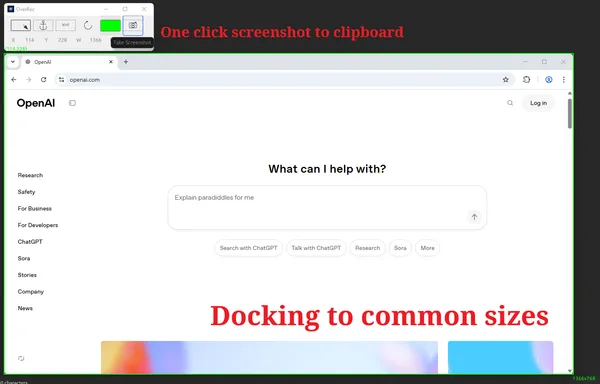
Three Powerful Drawing Modes
Choose the mode that fits your workflow: Free Drawing for mouse-precise rectangles of any size, Docking Mode to snap to common resolutions (320×240, 640×480, 1280×720, 1920×1080, and more), or Fixed Coordinate Mode to enter exact X, Y, width, and height values for pixel-perfect positioning. One-click screenshot captures the region straight to your clipboard.
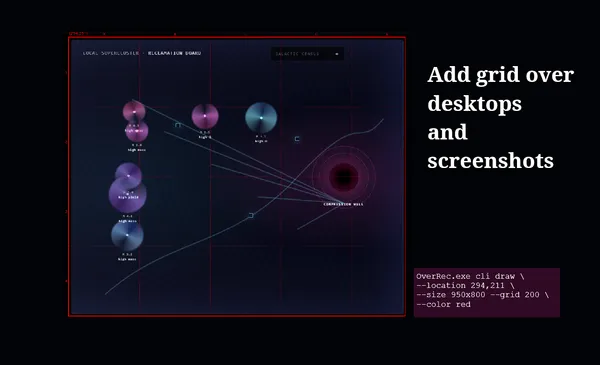
Draw a Grid Over Anything
Overlay a labeled measurement grid on your desktop or inside any rectangle — choose dotted, dashed, or solid lines and any cell size from 10px up. Lines get column letters and row numbers so you can reference exact cells, great for aligning UI elements, checking spacing, or giving AI agents precise coordinates.
OverRec.exe cli draw --location 256,211 --size 955x692 --grid 200 --color red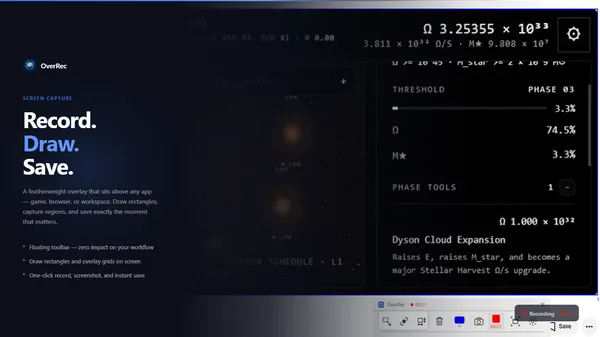
Record Any Region to GIF or MP4
Draw a rectangle, then record exactly that area to an animated GIF or H.264 MP4 — from the toolbar (or Ctrl+Shift+R) or the command line. GIF uses a built-in encoder for quick UI demos, while MP4 produces H.264 video via FFmpeg. Choose your frame rate, record in the foreground, or run timed captures in the background for scripts and AI agents.
OverRec.exe cli record --location 0,0 --size 1280x720 --output demo.gif --timeout 10
OverRec.exe cli record --location 0,0 --size 1920x1080 --output demo.mp4 --timeout 15 --fps 30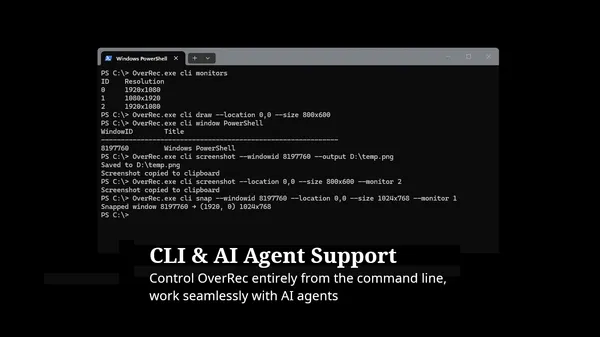
CLI, MCP & AI Agent Support
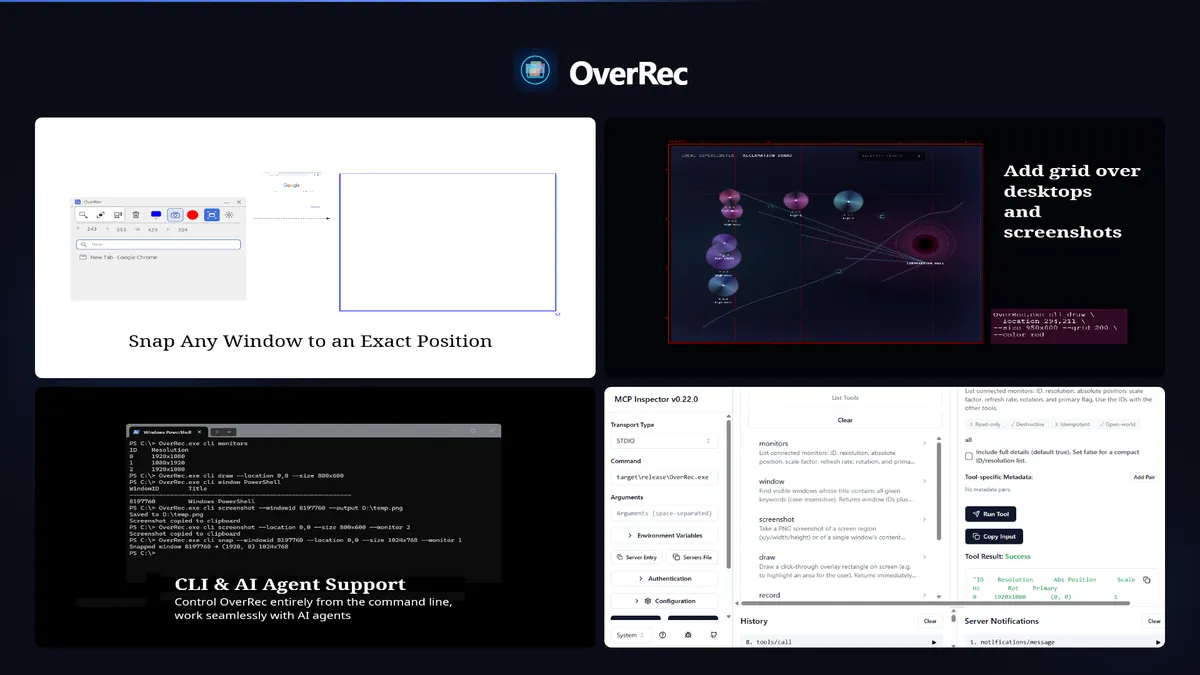
Control OverRec entirely from the command line — no GUI required. List monitors, draw overlays at specific coordinates, capture screenshots, and record the screen programmatically. OverRec can also run as an MCP (Model Context Protocol) server, exposing every command as a tool so AI agents like Claude can drive it directly over HTTP or stdio — capturing screen regions, drawing overlays, or recording as part of a larger automated workflow.
OverRec.exe cli draw --location 0,0 --size 1920x1080 --color red
OverRec.exe cli screenshot --location 100,200 --size 640x480 --clipboard
OverRec.exe cli mcp            # start an MCP server for AI agents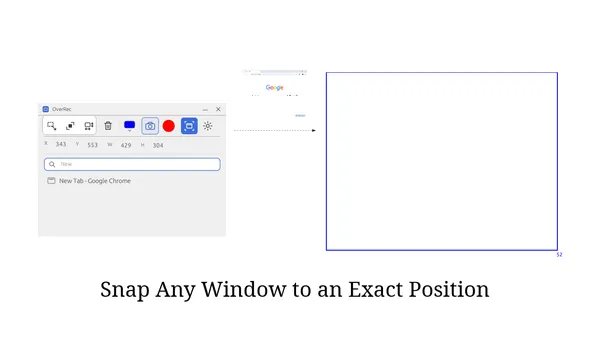
Snap Any Window to an Exact Position
Draw a rectangle where you want a window to go, then use the Snap button to instantly move and resize any window to fill it — pixel-perfect, every time. Search for windows by title in any language. Combine with CLI scripting to restore your entire workspace layout in one command.