
Dropignore
Keep chosen files and folders out of Dropbox sync without deleting or moving them, right from File Explorer's right-click menu — using Dropbox's own official ignore mechanism. Manage every ignored item in one list, and back up or move your ignore list between PCs as JSON.

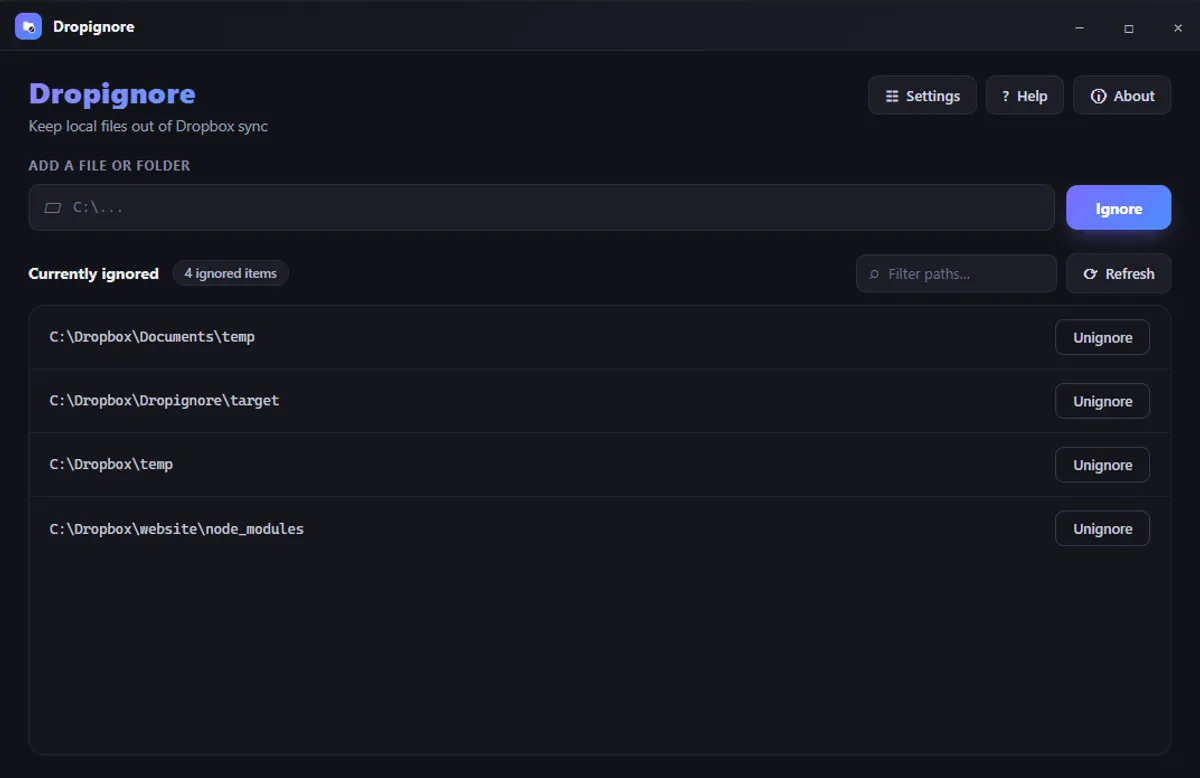
Dropignore writes the same file attribute (com.dropbox.ignored) that Dropbox’s own desktop client already understands, so excluded items stay exactly where they are — just invisible to sync. Nothing is moved, copied, or uploaded anywhere.
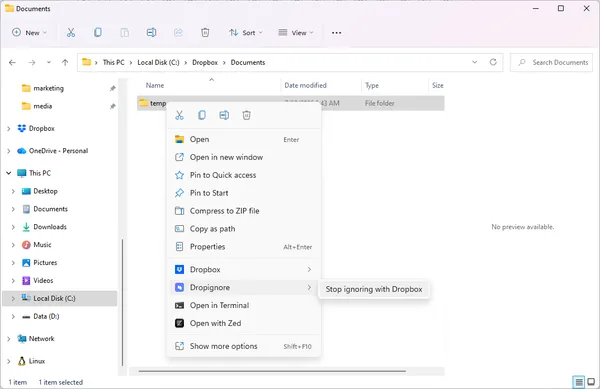
Ignore Files Right from Explorer
Right-click any file or folder and choose Ignore with Dropbox — or Stop ignoring with Dropbox to reverse it. The commands work on multiple selected items at once, and their text automatically follows the language you’ve chosen in the app.
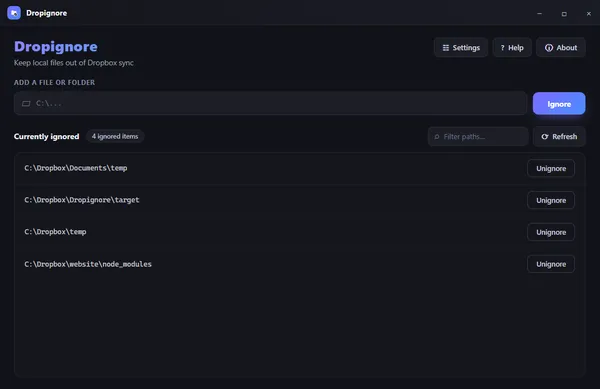
Manage Every Ignored Item in One List
See every file and folder you’ve ignored in a single, filterable list. Search by path, unignore anything with one click, and add new paths directly without leaving the app.
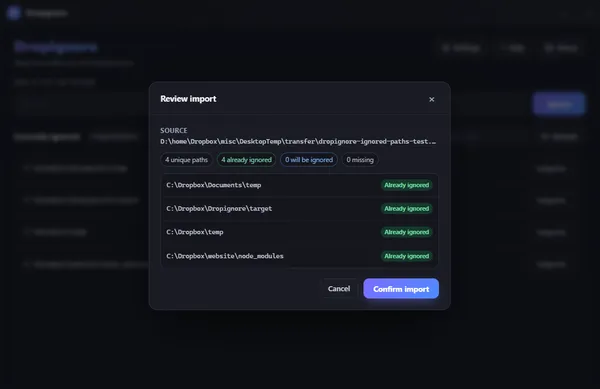
Back Up and Move Your Ignore List
Export your ignore list to a JSON file, and import it later or on another PC. Before anything changes, every path is checked and shown as Already ignored, Will be ignored, or Missing, so a partial import can never happen unnoticed.