Type something to search...
How to Screenshot a YouTube Video (or Any Video Site) with OverRec

How to Screenshot a YouTube Video (or Any Video Site) with OverRec

You’re watching a tutorial, a product demo, or a live stream and you want a clean frame from the video — no browser toolbar, no tab bar, no distractions. Here are two ways to do it with OverRec.
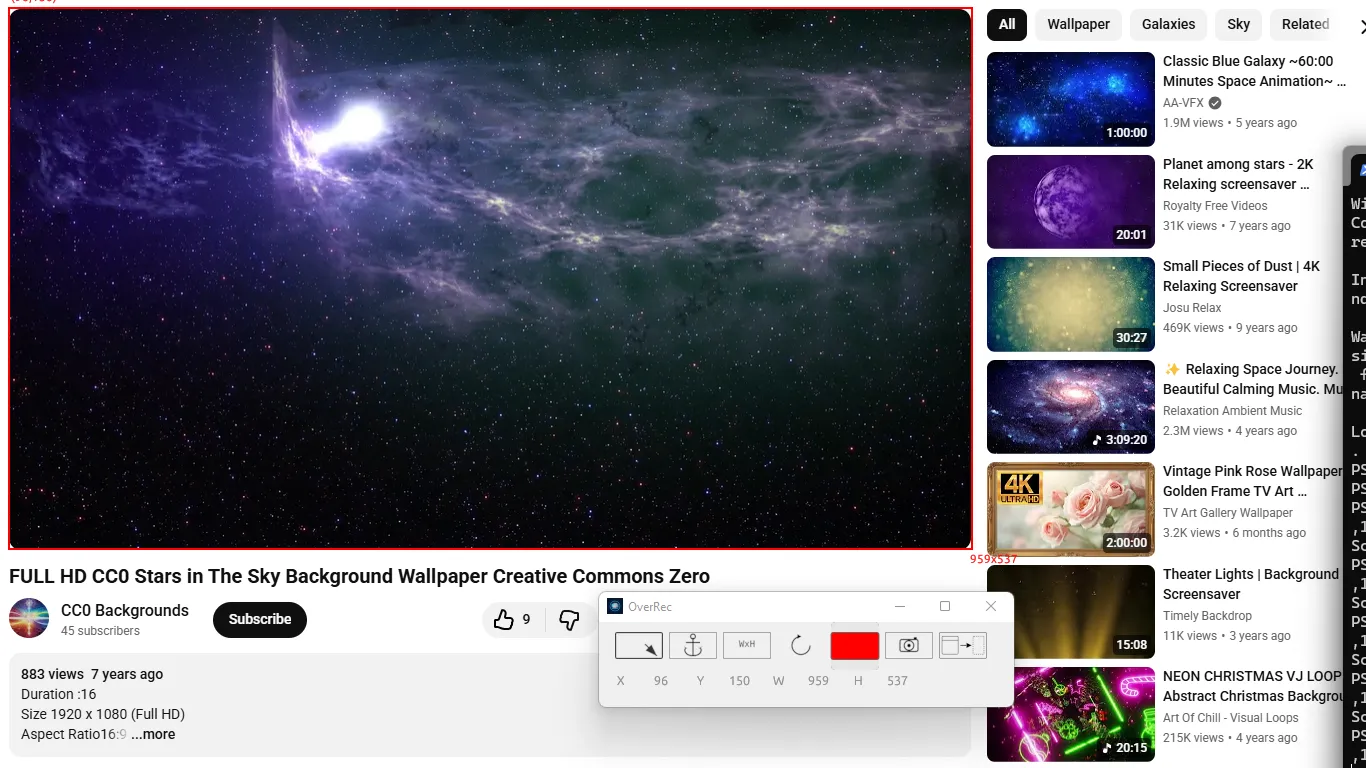
YouTube video playing in browser, ready to screenshot


Method 1: Draw a Rectangle Over the Video, Then Reuse the Coordinates

The most precise approach for any setup. Use OverRec’s GUI to draw a selection that exactly wraps the video player — then reuse those coordinates in the CLI whenever you want to capture the same region again.

Step 1 — Open OverRec and draw over the video

Launch OverRec and use the rectangle capture tool to drag a selection that tightly wraps the video player area. OverRec captures the region and shows you the coordinates of your selection — for example, location: 120,90 and size: 1280x720.

Step 2 — Reuse those coordinates in the CLI

Once you know the exact region, repeat the same capture from the command line without touching the mouse:

OverRec.exe cli screenshot --location 120,90 --size 1280x720 --output "frame.png" --no-clipboard

Replace 120,90 and 1280x720 with the values OverRec showed you. As long as the browser stays in the same position, the region is identical every run.

This works for any video player on any site — YouTube, Vimeo, Twitch, embedded players in documentation. The coordinates are all that matter.


Method 2: Fullscreen on a Second Monitor and Capture the Whole Screen

If you have two or more monitors, this is the cleanest result. Move the browser to your secondary display, go fullscreen, and capture the entire monitor — the frame fills the image with nothing else.

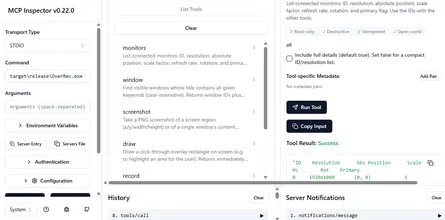
Step 1 — List your monitors

OverRec.exe cli monitors

Output:

ID    Resolution
0     1920x1080
1     2560x1440

Step 2 — Put the video fullscreen on the secondary monitor

Move the browser window to monitor 1 and press F on YouTube (or the fullscreen button on any video site).

Step 3 — Capture that monitor

OverRec.exe cli screenshot --monitor 1 --output "frame.png" --no-clipboard

The result is the full video frame at the monitor’s native resolution, with nothing else in the image.


Tip: Capture Frames on a Loop

Both methods work inside a loop. If you want frames at regular intervals — for a time-lapse, to log a stream, or to catch a specific moment — wrap the command in a PowerShell loop:

Using coordinates from Method 1:

# Capture one frame every 5 seconds, 12 times
for ($i = 1; $i -le 12; $i++) {
    OverRec.exe cli screenshot --location 120,90 --size 1280x720 --output "frame_$i.png" --no-clipboard
    Start-Sleep -Seconds 5
}

Using a fullscreen monitor from Method 2:

for ($i = 1; $i -le 12; $i++) {
    OverRec.exe cli screenshot --monitor 1 --output "frame_$i.png" --no-clipboard
    Start-Sleep -Seconds 5
}

Each run drops a numbered file to disk. Adjust the interval and count to match your use case.


Works with Any Video Site

YouTube, Vimeo, Twitch, Netflix, embedded players in documentation — the commands are the same. OverRec does not interact with the browser or the site; it captures pixels from the screen region you specify.


Summary

MethodWhen to use
Draw rectangle → reuse coordinatesAny setup; precise crop, works on a single monitor
Fullscreen on second monitorCleanest result; no crop needed, full native resolution

Download OverRec from the Microsoft Store.
Related Posts

Learn Vocabulary Effortlessly with Infini Alchemy

Learn Vocabulary Effortlessly with Infini Alchemy

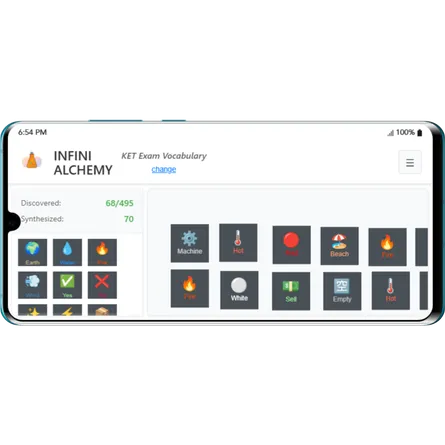
Are you looking for a fun and engaging game that can also help you learn new words? Look no further! Infini Alchemy is a creative alchemy game where you can combine basic elements like Water, Fire, Ea

read more
How to copy the formulas in ChatGPT response to word

How to copy the formulas in ChatGPT response to word

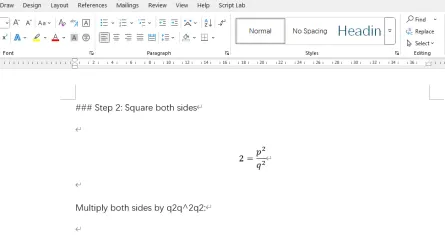
Copy the formulas in ChatGPT response to word, simply 3 steps:Copy the ChatGPT response as markdown (keep LaTeX formulas) Select the formulas in Word and insert as equation Convert LaTeX fo

read more
Master KET Vocabulary Through Alchemy: A New Learning Adventure

Master KET Vocabulary Through Alchemy: A New Learning Adventure

Infini Alchemy is an innovative web-based game that transforms vocabulary learning into an engaging alchemical adventure. By dragging and dropping elements to craft new items, players naturally absorb

read more
Real-Time Video Effects with GPU Acceleration

Real-Time Video Effects with GPU Acceleration

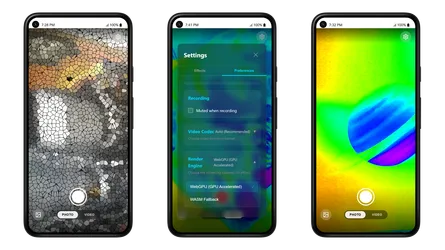
GPU rendering is now available in Sub Dimension Camera. This feature eliminates the need to wait for a video to "render" after recording. You can now preview and capture complex artistic filters in re

read more
See the World Differently: Camera Effects in Sub Dimension

See the World Differently: Camera Effects in Sub Dimension

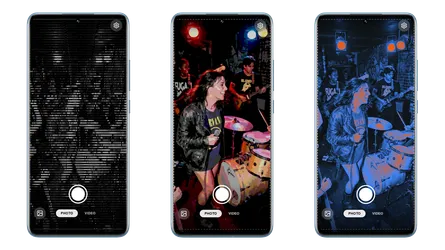
Your camera captures moments. Effects transform them into art. Sub Dimension comes packed with real-time visual effects that apply live in the viewfinder — what you see is what you get, whether you'r

read more

Move Any Window to an Exact Position and Size

You've set up a perfect workflow: your code editor on the left, browser on the right, terminal at the bottom. Then you restart your machine and spend the next five minutes dragging windows back into p

read more

Let an AI Agent Resize a Window and Take the Screenshot

Screen automation is easiest to trust when the result is visible and repeatable. In this short demo, an AI agent uses the OverRec screen skill to find a browser window, resize it to an exact rectangle

read more

将任意窗口精确定位到指定位置和尺寸

你精心搭建了完美的工作流:左边代码编辑器,右边浏览器,底部终端。然后重启电脑,又花了五分钟把窗口一个个拖回原位——差不多,但就是不够准。 OverRec 解决了这个问题。手动拖拽窗口的局限 用鼠标拖拽窗口本来就不精确。你瞄准第 960 像素,落点却是 963。你把窗口调到"看起来差不多",却在一秒后发现那道缝隙。日常使用无所谓,但对于录屏、文档截图或需要重复使用的工作区布局

read more

Mueve Cualquier Ventana a una Posición y Tamaño Exactos

Has configurado el flujo de trabajo perfecto: tu editor de código a la izquierda, el navegador a la derecha, la terminal abajo. Luego reinicias el equipo y pasas los siguientes cinco minutos arrastran

read more

Deja que un Agente de IA Redimensione una Ventana y Tome la Captura

La automatización de pantalla es más fácil de confiar cuando el resultado es visible y repetible. En esta breve demo, un agente de IA usa la habilidad de pantalla de OverRec para encontrar una ventana

read more

让 AI 智能体调整窗口大小并完成截图

屏幕自动化要让人放心,结果就必须可见、可重复。在这个简短演示中,AI 智能体使用 OverRec 屏幕技能找到一个浏览器窗口,将其调整到精确矩形,并在无需手动拖拽的情况下截取干净的截图。

read more
Cómo capturar un fotograma de YouTube (o cualquier sitio de vídeo) con OverRec

Cómo capturar un fotograma de YouTube (o cualquier sitio de vídeo) con OverRec

Estás viendo un tutorial, una demostración de producto o una transmisión en vivo y quieres capturar un fotograma limpio del vídeo — sin barra de herramientas del navegador, sin barra de pestañas, sin

read more
如何用 OverRec 截取 YouTube 视频帧(或任意视频网站)

如何用 OverRec 截取 YouTube 视频帧(或任意视频网站)

你正在观看教程、产品演示或直播,想要截取一帧干净的视频画面——没有浏览器工具栏、标签栏,没有任何干扰。以下是使用 OverRec 的两种方法。方法一:在视频上绘制矩形,然后复用坐标 适合任何设备的最精确方法。使用 OverRec 的图形界面绘制一个精确覆盖视频播放

read more