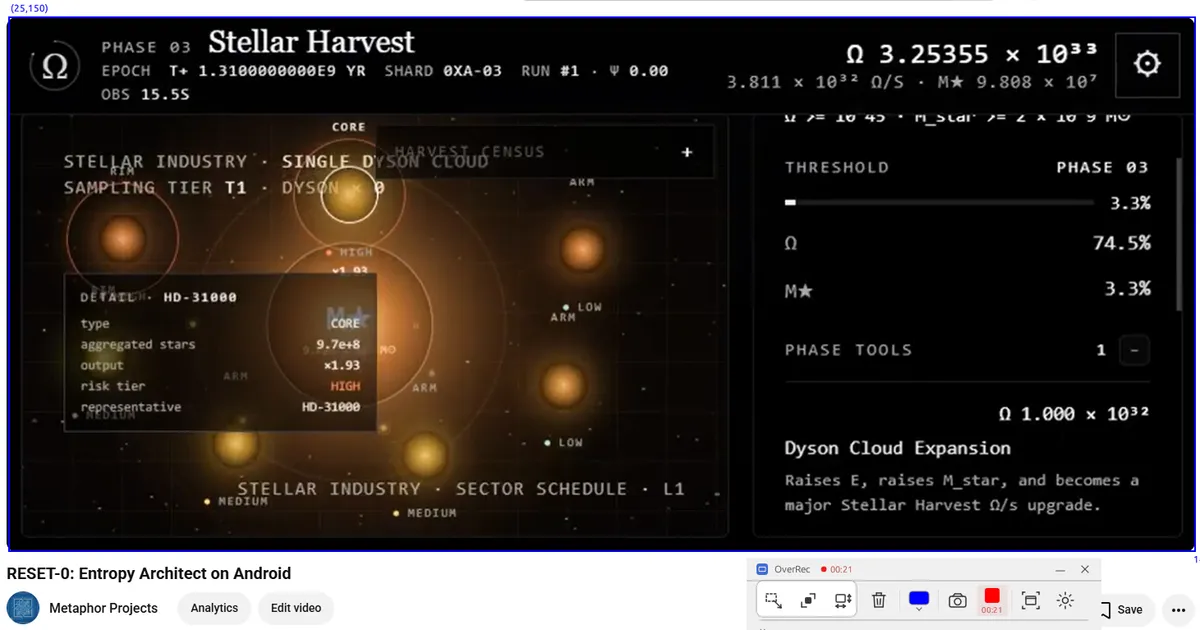
Record Any Screen Region to GIF or MP4 with OverRec
- Metaphor Projects
- Application
- 10 Jun, 2026
Screen recording usually starts with a compromise: capture the whole monitor and crop it later, or wrestle with a recorder’s region selector every time. OverRec now records the exact rectangle you draw, using the same pixel-precise workflow already available for screenshots and window placement.
You can record interactively from the OverRec toolbar or automate a timed capture from the command line. Output can be an animated GIF or an H.264 MP4.
Record a Precise Region from the GUI
The visual workflow is deliberately short:
- Open Settings and choose
GIForMP4. - Select a recording folder.
- Draw a rectangle over the area you want to capture.
- Click the red recording button or press
Ctrl+Shift+R. - Click the stop button or use the shortcut again to finish.
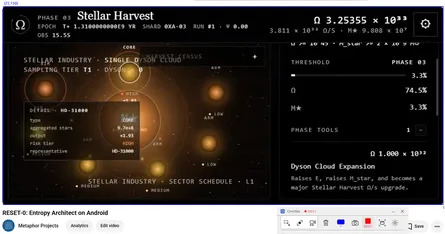
While recording, the red circle changes to a stop square and OverRec displays the elapsed time. When the encoder has finished, the completed file is saved in the selected recording folder.
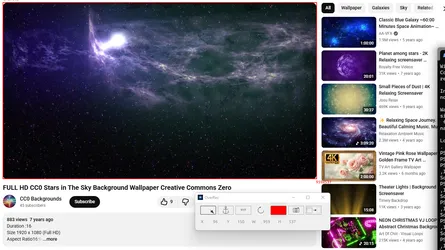
The most recently completed rectangle defines the captured area. This makes it easy to frame a browser demo, a single application panel, or a small interaction without exposing the rest of the desktop.
Choosing a format
- GIF uses OverRec’s built-in encoder. It is convenient for short UI demonstrations that can play directly in documentation, chat, and issue trackers.
- MP4 produces H.264 video and requires FFmpeg to be available as
ffmpegon your systemPATH.
GIF files grow quickly with resolution and duration. For longer or full-HD recordings, MP4 is usually the better choice.
Record from the Command Line
The new record command makes the same capability available to scripts and AI agents:
OverRec.exe cli record `
  --location 100,100 `
  --size 1280x720 `
  --output demo.gif `
  --timeout 10
This records a 1280x720 region starting at screen coordinate 100,100 for ten seconds.
Record an H.264 MP4
OverRec.exe cli record `
  --location 0,0 `
  --size 1920x1080 `
  --output demo.mp4 `
  --timeout 15 `
  --fps 30
MP4 recording uses FFmpeg. If it is not on PATH, provide the executable explicitly:
OverRec.exe cli record `
  --location 0,0 `
  --size 1280x720 `
  --output demo.mp4 `
  --timeout 15 `
  --fps 30 `
  --ffmpeg C:\ffmpeg\bin\ffmpeg.exe
Start a recording in the background
By default, the command waits until recording and finalization are complete. Add --async when a script or agent should continue working immediately:
OverRec.exe cli record `
  --location 0,0 `
  --size 1280x720 `
  --output demo.mp4 `
  --timeout 20 `
  --fps 30 `
  --async
The command returns after starting a detached worker. The output file is finalized when the timeout expires.
Combine Recording with Window Snapping
OverRec can position an application and record the same exact area. That gives you repeatable framing across product demos, tutorials, and automated test evidence.
First, find the window:
OverRec.exe cli window chromeThen move it to a known rectangle:
OverRec.exe cli snap `
  --windowid 657846 `
  --location 100,100 `
  --size 1280x720
Finally, record that rectangle:
OverRec.exe cli record `
  --location 100,100 `
  --size 1280x720 `
  --output browser-demo.mp4 `
  --timeout 20 `
  --fps 30
The window and recording region now share the same coordinates. There is no manual cropping and no frame-to-frame drift between separate recording sessions.
Useful Recording Workflows
- Product demos: isolate one app and keep private desktop content outside the frame.
- Bug reports: capture a small reproduction without editing a full-screen recording.
- Documentation: create compact animated GIFs for individual interactions.
- Automated testing: let a script arrange a window, record a timed workflow, and continue with
--async. - AI agents: expose screen recording as a deterministic command with explicit coordinates, dimensions, duration, and output path.
On Windows, MP4 capture uses Desktop Duplication for efficient screen capture. The selected region must fit entirely inside one non-rotated monitor.
A Screen Tool That Reuses the Same Rectangle
OverRec’s main idea remains the same: define an exact area once, then use it for the task at hand. That rectangle can now guide an overlay, resize a window, capture a still image, or record a video.
Download OverRec from the Microsoft Store.