Type something to search...
Give AI Agents Screen Control: OverRec's MCP Server

Give AI Agents Screen Control: OverRec's MCP Server

AI coding agents are good at reasoning about a task, but bad at touching the screen — finding a window, lining it up, and grabbing a clean screenshot has always meant gluing together ad-hoc scripts. OverRec closes that gap by running as a Model Context Protocol (MCP) server, so any MCP-aware agent — Claude Code, Claude Desktop, or your own tooling — can call OverRec’s window and screen tools directly, with no custom glue code.
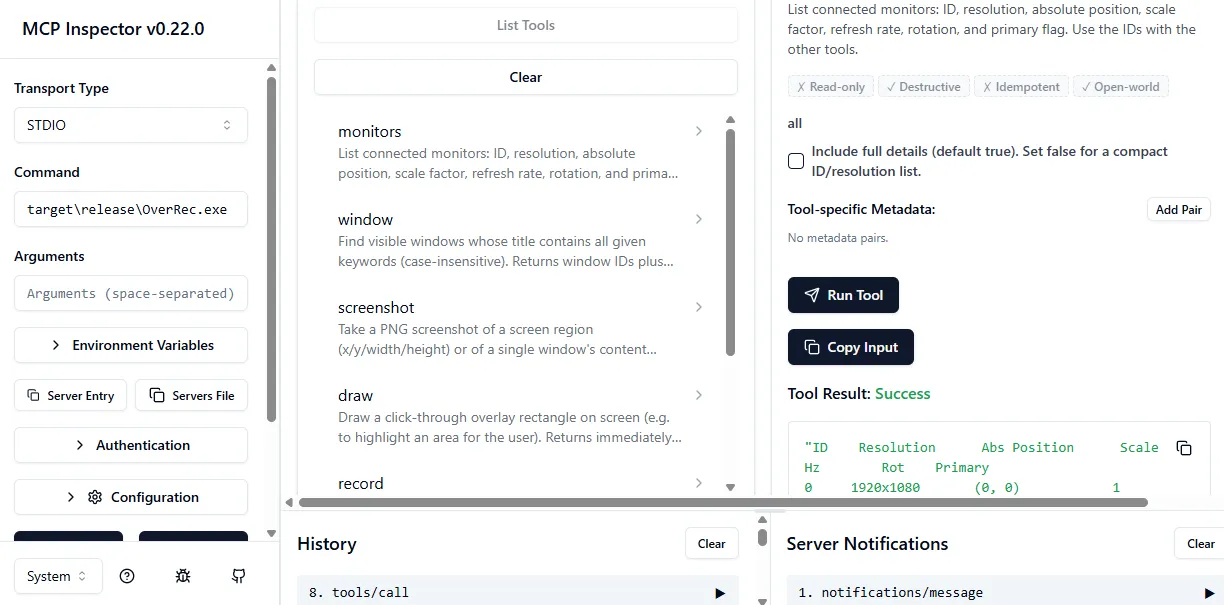
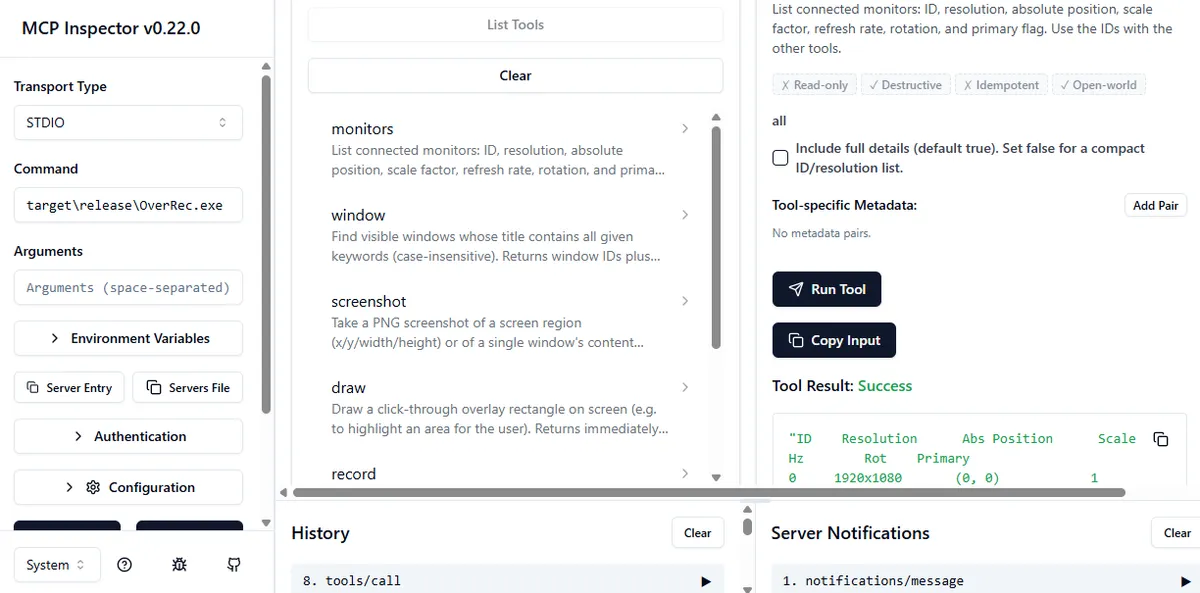
MCP Inspector listing OverRec's tools — monitors, window, screenshot, draw, record — and a successful monitors call


What the MCP Server Exposes

Every OverRec CLI command is mirrored as an MCP tool:

ToolMirrorsNotes
monitorscli monitorsFull details by default, or a compact ID/resolution list
windowcli windowFind windows by keyword
screenshotcli screenshotCapture a region or a specific window by ID
drawcli drawShow a click-through overlay rectangle to verify an area
recordcli recordCapture a region to GIF or MP4, in the background or blocking
snapcli snapMove and resize a window to exact coordinates
versioncli version

An agent can chain these in one conversation: list monitors, find a window, snap it into place, draw a confirmation rectangle, then capture the final screenshot — all as tool calls, no shell scripting required.


Starting the Server

OverRec supports two transports:

# Streamable HTTP — start once, share across clients
OverRec.exe cli mcp

# stdio — the client launches and manages the process itself
OverRec.exe cli mcp --stdio

HTTP mode listens on 127.0.0.1:7820 by default and serves a stateless JSON-RPC endpoint at /mcp; non-local Origin headers are rejected to prevent DNS rebinding. stdio mode speaks newline-delimited JSON-RPC over stdin/stdout and exits when the client closes the pipe — the simpler choice when the agent itself is responsible for starting OverRec.


Registering with Claude Code

# Option A — HTTP, leave the server running
OverRec.exe cli mcp
claude mcp add --transport http overrec http://127.0.0.1:7820/mcp

# Option B — stdio, Claude Code manages the process
claude mcp add overrec -- OverRec.exe cli mcp --stdio

Once registered, Claude can call monitors, window, screenshot, draw, record, and snap like any other tool — describing the screen action it wants in plain language instead of issuing raw CLI commands.


Inspecting the Server Yourself

The screenshot above is the MCP Inspector connected to OverRec over stdio. It lists every tool with its description, lets you run one manually, and shows the raw JSON-RPC result — useful for confirming the server works before wiring it into an agent, or for debugging a tool call that didn’t do what you expected.


Why This Matters

Screenshots and window control are exactly the kind of task that’s brittle when scripted ad hoc — paths differ per machine, window titles vary, coordinates drift. MCP gives agents a stable, typed interface to OverRec instead: the agent asks for “the Chrome window at 800x600” and gets back a window ID, a snapped position, and a screenshot, the same way every time.

That makes OverRec’s MCP server useful for:

  • agent-driven documentation and bug-report screenshots
  • automated UI comparison across runs
  • any workflow where an AI agent needs to see and control the screen, not just reason about code

Download OverRec from the Microsoft Store.
Related Posts

Learn Vocabulary Effortlessly with Infini Alchemy

Learn Vocabulary Effortlessly with Infini Alchemy

Are you looking for a fun and engaging game that can also help you learn new words? Look no further! Infini Alchemy is a creative alchemy game where you can combine basic elements like Water, Fire, Ea

read more
Master KET Vocabulary Through Alchemy: A New Learning Adventure

Master KET Vocabulary Through Alchemy: A New Learning Adventure

Infini Alchemy is an innovative web-based game that transforms vocabulary learning into an engaging alchemical adventure. By dragging and dropping elements to craft new items, players naturally absorb

read more
How to copy the formulas in ChatGPT response to word

How to copy the formulas in ChatGPT response to word

Copy the formulas in ChatGPT response to word, simply 3 steps:Copy the ChatGPT response as markdown (keep LaTeX formulas) Select the formulas in Word and insert as equation Convert LaTeX fo

read more
Real-Time Video Effects with GPU Acceleration

Real-Time Video Effects with GPU Acceleration

GPU rendering is now available in Sub Dimension Camera. This feature eliminates the need to wait for a video to "render" after recording. You can now preview and capture complex artistic filters in re

read more
See the World Differently: Camera Effects in Sub Dimension

See the World Differently: Camera Effects in Sub Dimension

Your camera captures moments. Effects transform them into art. Sub Dimension comes packed with real-time visual effects that apply live in the viewfinder — what you see is what you get, whether you'r

read more

Move Any Window to an Exact Position and Size

You've set up a perfect workflow: your code editor on the left, browser on the right, terminal at the bottom. Then you restart your machine and spend the next five minutes dragging windows back into p

read more

Let an AI Agent Resize a Window and Take the Screenshot

Screen automation is easiest to trust when the result is visible and repeatable. In this short demo, an AI agent uses the OverRec screen skill to find a browser window, resize it to an exact rectangle

read more
How to Screenshot a YouTube Video (or Any Video Site) with OverRec

How to Screenshot a YouTube Video (or Any Video Site) with OverRec

You're watching a tutorial, a product demo, or a live stream and you want a clean frame from the video — no browser toolbar, no tab bar, no distractions. Here are two ways to do it with OverRec. ![Yo

read more
Record Any Screen Region to GIF or MP4 with OverRec

Record Any Screen Region to GIF or MP4 with OverRec

Screen recording usually starts with a compromise: capture the whole monitor and crop it later, or wrestle with a recorder's region selector every time. OverRec now records the exact rectangle you dra

read more
longarm Is Now Available on Android

longarm Is Now Available on Android

longarm is now available on Android through Google Play. longarm turns an Android phone or tablet into a controllable remote endpoint for developers, testers, automation scripts, and AI agents. Start

read more
Run repeatable Android workflows with longarm batch tasks

Run repeatable Android workflows with longarm batch tasks

longarm now supports batch tasks: saved Android automation flows that can run more than one action at a time. Instead of sending a separate request for every tap, delay, app launch, or screenshot, yo

read more

让 AI 智能体调整窗口大小并完成截图

屏幕自动化要让人放心,结果就必须可见、可重复。在这个简短演示中,AI 智能体使用 OverRec 屏幕技能找到一个浏览器窗口,将其调整到精确矩形,并在无需手动拖拽的情况下截取干净的截图。

read more
如何用 OverRec 截取 YouTube 视频帧(或任意视频网站)

如何用 OverRec 截取 YouTube 视频帧(或任意视频网站)

你正在观看教程、产品演示或直播,想要截取一帧干净的视频画面——没有浏览器工具栏、标签栏,没有任何干扰。以下是使用 OverRec 的两种方法。方法一:在视频上绘制矩形,然后复用坐标 适合任何设备的最精确方法。使用 OverRec 的图形界面绘制一个精确覆盖视频播放

read more
使用 OverRec 将任意屏幕区域录制为 GIF 或 MP4

使用 OverRec 将任意屏幕区域录制为 GIF 或 MP4

屏幕录制通常需要做出妥协:要么录制整个显示器,之后再裁剪;要么每次都重新调整录屏工具的区域选择框。OverRec 现在可以直接录制你绘制的精确矩形,并沿用截图和窗口定位功能中已有的像素级精确工作流。 你可以从 OverRec 工具栏进行交互式录制,也可以通过命令行自动执行定时录制。输出格式支持动态 GIF 和 H.264 MP4。从图形界面录制精确区域 可视化录制流程非常简

read more

将任意窗口精确定位到指定位置和尺寸

你精心搭建了完美的工作流:左边代码编辑器,右边浏览器,底部终端。然后重启电脑,又花了五分钟把窗口一个个拖回原位——差不多,但就是不够准。 OverRec 解决了这个问题。手动拖拽窗口的局限 用鼠标拖拽窗口本来就不精确。你瞄准第 960 像素,落点却是 963。你把窗口调到"看起来差不多",却在一秒后发现那道缝隙。日常使用无所谓,但对于录屏、文档截图或需要重复使用的工作区布局

read more

Deja que un Agente de IA Redimensione una Ventana y Tome la Captura

La automatización de pantalla es más fácil de confiar cuando el resultado es visible y repetible. En esta breve demo, un agente de IA usa la habilidad de pantalla de OverRec para encontrar una ventana

read more
Cómo capturar un fotograma de YouTube (o cualquier sitio de vídeo) con OverRec

Cómo capturar un fotograma de YouTube (o cualquier sitio de vídeo) con OverRec

Estás viendo un tutorial, una demostración de producto o una transmisión en vivo y quieres capturar un fotograma limpio del vídeo — sin barra de herramientas del navegador, sin barra de pestañas, sin

read more

Mueve Cualquier Ventana a una Posición y Tamaño Exactos

Has configurado el flujo de trabajo perfecto: tu editor de código a la izquierda, el navegador a la derecha, la terminal abajo. Luego reinicias el equipo y pasas los siguientes cinco minutos arrastran

read more
Graba cualquier región de la pantalla en GIF o MP4 con OverRec

Graba cualquier región de la pantalla en GIF o MP4 con OverRec

La grabación de pantalla suele comenzar con una concesión: capturar todo el monitor y recortarlo después, o volver a ajustar el selector de región de un grabador cada vez. OverRec ahora graba el rectá

read more
Da a los agentes de IA control sobre la pantalla: el servidor MCP de OverRec

Da a los agentes de IA control sobre la pantalla: el servidor MCP de OverRec

Los agentes de programación con IA son buenos razonando sobre una tarea, pero malos tocando la pantalla: encontrar una ventana, alinearla y obtener una captura limpia siempre ha implicado pegar script

read more
让 AI Agent 直接控制屏幕:OverRec 的 MCP 服务器

让 AI Agent 直接控制屏幕:OverRec 的 MCP 服务器

AI 编程智能体擅长推理任务,但并不擅长真正操作屏幕: 找到一个窗口、把它摆正,再截出一张干净的图片,过去往往需要拼接一堆临时脚本。OverRec 通过作为 Model Context Protocol(MCP)服务器运行,填补了这道缺口。这样一来,无论是 Claude Code、Claude Desktop,还是你自己的工具

read more