OverRec: Tile Your Windows and Let AI Click and Type Inside a Rectangle
- Metaphor Projects
- Application
- 03 Nov, 2026
Preparing a demo often means arranging a preview, reference material, and notes in one area. Asking an AI agent to help with a desktop task also requires a clear place to click and type. Two new OverRec capabilities connect those steps: Tile arranges multiple windows inside a rectangle, and simulated input lets an agent perform mouse and keyboard actions within a rectangle.
Set up the windows, define the interaction area, enter the content, and capture the result for review or a tutorial.
Tile: arrange several windows in one area
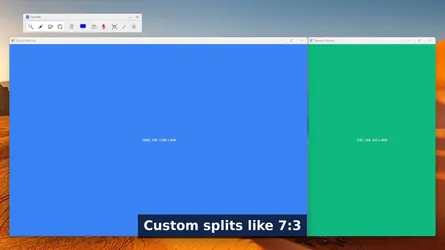
OverRec’s Snap feature moves and resizes a window to fit a rectangle. Tile divides that rectangle into slots and places selected windows into them. You choose the area, so a layout can occupy just the part of the desktop reserved for your work or recording.
| Layout | A useful setup |
|---|---|
| Two columns: 1:1, 4:6, 6:4, 7:3, or 3:7 | Give the main app more space and keep references alongside it |
| Two rows with the same ratio choices | Put a preview above its output or notes |
| Three equal columns or rows | Compare three related windows |
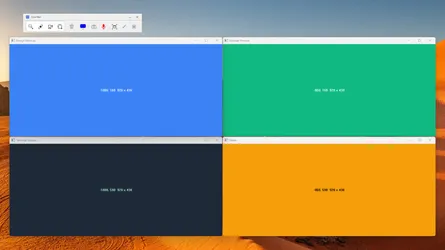
| A 2×2 grid | Keep four windows visible in the same area |
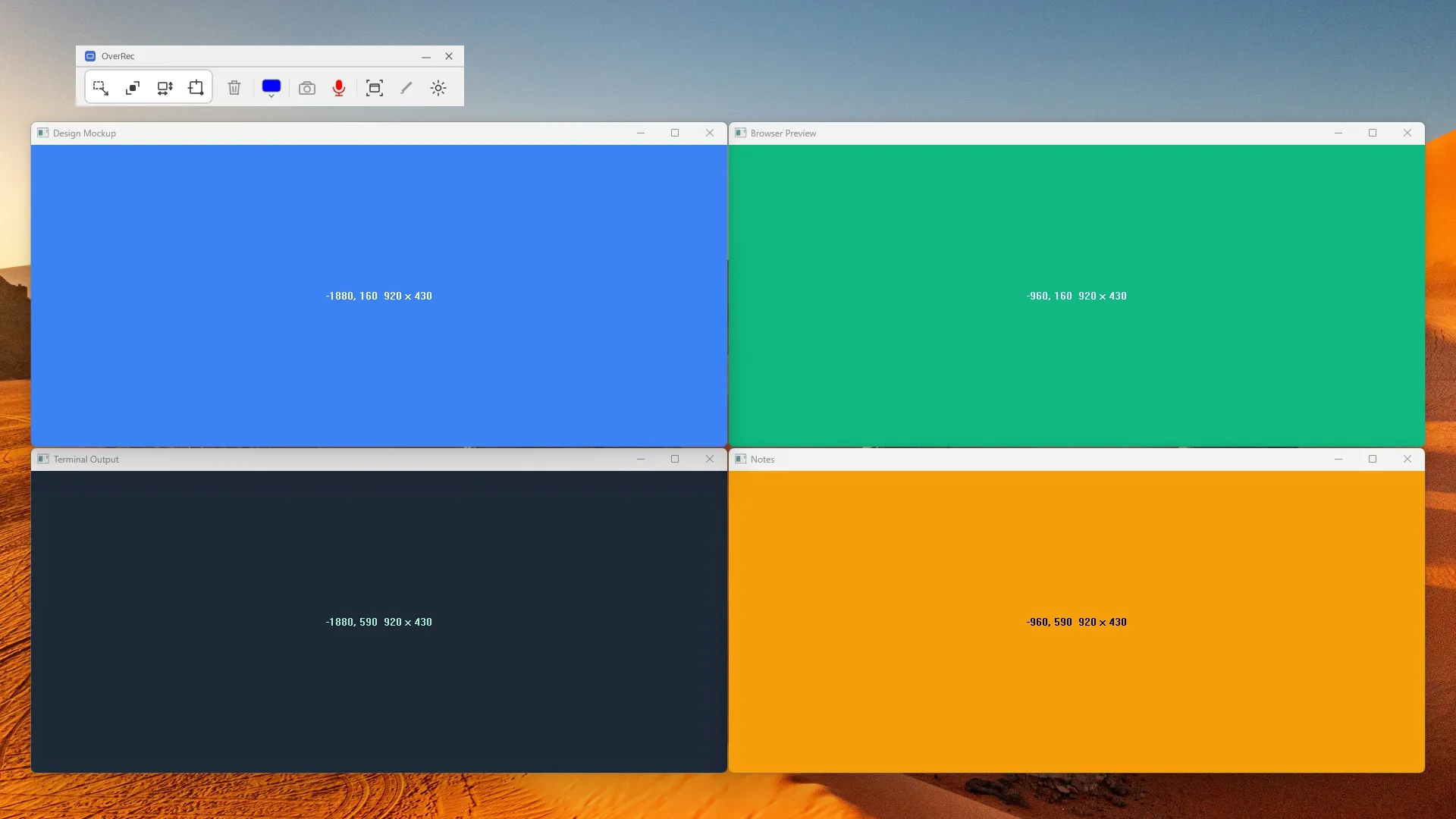
The colored test windows demonstrate the position and dimensions of each slot.
In the GUI, draw the target rectangle, open the Snap window list, choose a layout, select windows in the desired order, and click Tile. Slots fill from left to right, then top to bottom. Selecting fewer windows than slots leaves the remaining slots empty.
CLI and MCP workflows can use the same layouts. For example, list the windows, then place two of them in a 70/30 split in a specified area on monitor 0:
OverRec.exe cli window
OverRec.exe cli snap --windowid 657846,329812 --tile lr-7:3 --location 0,0 --size 1920x1080 --monitor 0
Replace the example IDs with actual IDs returned by window, and adjust the area to your display. Use lr-1:1:1 for three columns, tb-1:1:1 for three rows, or grid-2x2 for four quarters. The MCP snap tool also accepts a tile argument.
Simulated input: clicks and text inside the box
An agent can use OverRec’s MCP mouse and keyboard tools to interact within a defined area. Mouse actions include moving, clicking, double-clicking, dragging, and scrolling. The keyboard tool supports key combinations and text entry.
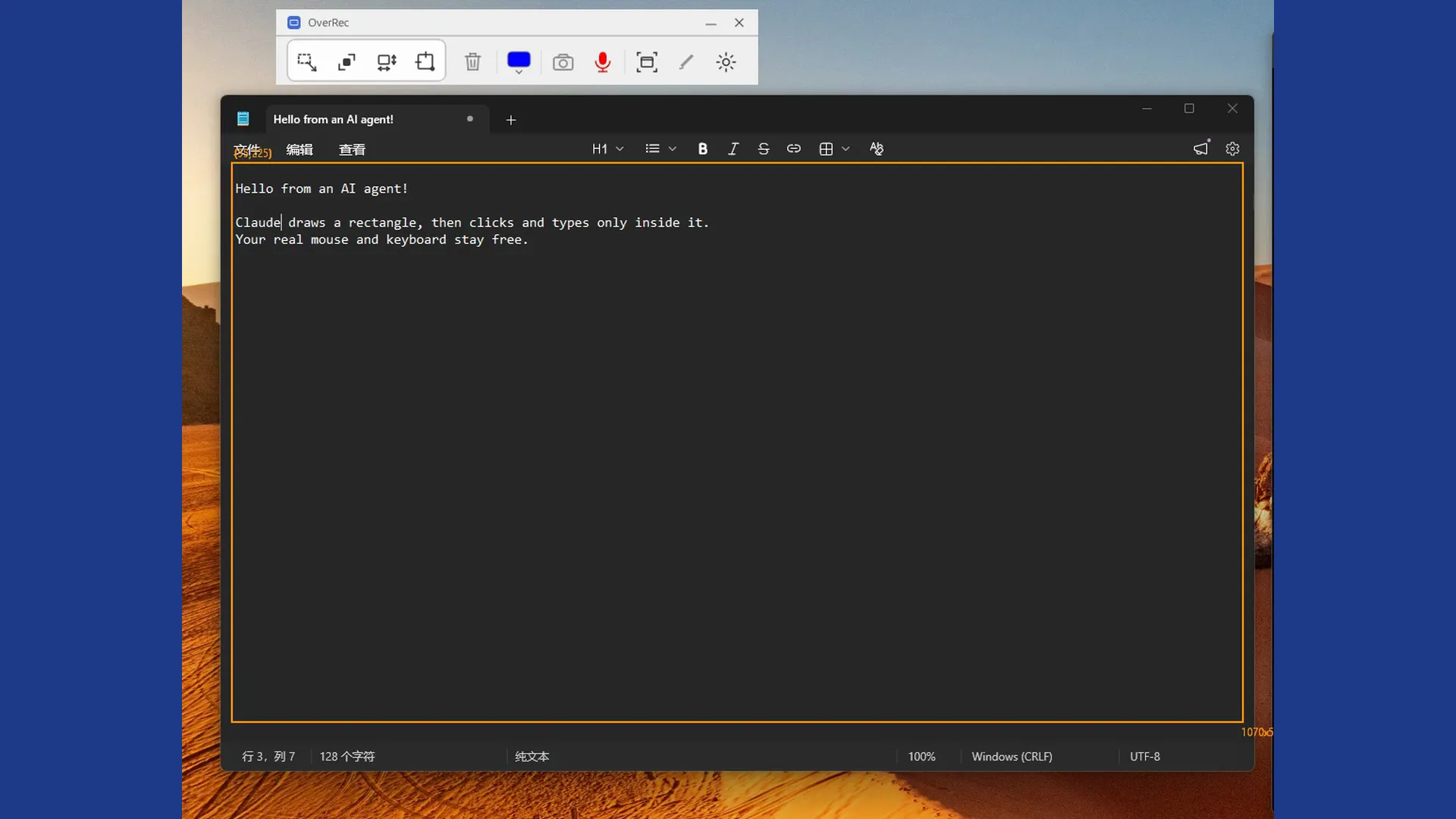
The recorded demo clicks in Notepad, types text, then double-clicks a word and replaces it. The orange rectangle marks the interaction area.
This feature currently works on Windows. Input is sent directly to the window at the target point. Your real cursor stays where it is, and the foreground window and focus stay unchanged. With compatible applications, an agent can handle the task inside the rectangle while you work elsewhere.
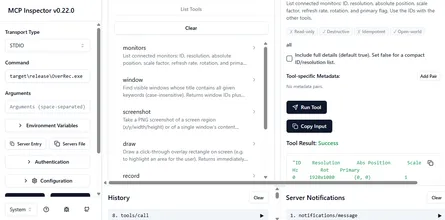
Start the MCP server and connect an MCP client:
OverRec.exe cli mcpThe default HTTP endpoint is http://127.0.0.1:7820/mcp. Clients that manage the server process can instead launch OverRec.exe cli mcp --stdio.
A draw, click, and type workflow
Choose a rectangle inside the target application’s content area. This example shows the tools and arguments to call in sequence through an MCP client; adjust the coordinates to your actual window.
[
  {"tool": "draw", "arguments": {"x": 100, "y": 200, "width": 800, "height": 400, "monitor": 0, "timeout_secs": 120}},
  {"tool": "mouse", "arguments": {"overlay": 1, "action": "click", "x": 40, "y": 40}},
  {"tool": "keyboard", "arguments": {"overlay": 1, "x": 40, "y": 40, "text": "Hello from an AI agent!"}}
]
Replace overlay: 1 with the actual ID returned by draw. Mouse and keyboard coordinates are logical pixels relative to that rectangle’s top-left corner. The same MCP server process must create the rectangle; a box drawn in the GUI or by another server cannot be used as its input area.
Coordinates outside the rectangle are rejected before input is sent. Closing the overlay or letting it expire also ends interaction with it. Follow the actions with a screenshot of the same area to check the result.
Application compatibility
Simulated input works in application content areas that accept window messages. Games that read raw input and some UWP/WinUI applications may ignore it. Some applications do not recognize simulated modifier states. A non-elevated server cannot send input to elevated windows; Windows-key shortcuts are unsupported, and input is refused while the desktop is locked or a UAC screen is active. Title bars and window borders are outside the supported content area.
Try a click and a short piece of text before running a longer workflow. Tile prepares the workspace, simulated input performs the steps within the chosen area, and screenshots or recordings help you review the outcome and prepare demo material.
Get OverRec from the Microsoft Store, or visit the OverRec product page and CLI / MCP guide.